

In today’s fast-paced business world, effective financial management is non-negotiable. For discerning Mac users, finding a robust, intuitive, and reliable desktop accounting solution that integrates seamlessly with their ecosystem is paramount for achieving fiscal clarity and operational excellence. This guide delves deep into leveraging QuickBooks for Mac Desktop, empowering small business owners, accountants, and entrepreneurs to streamline their bookkeeping, enhance reporting, and unlock unprecedented financial control directly from their Apple devices.
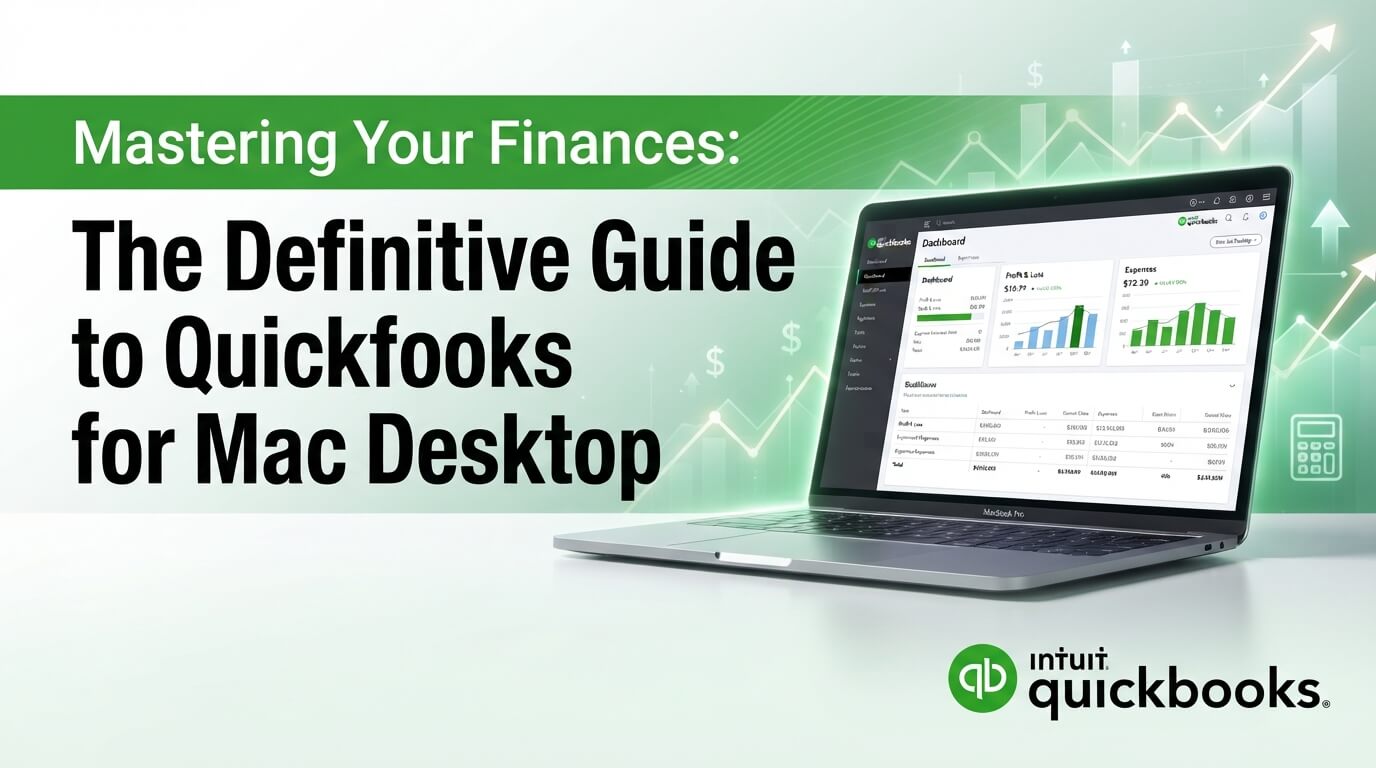
Quick Answer: QuickBooks for Mac Desktop offers a powerful, intuitive, and locally installed accounting solution specifically designed for Apple users, enabling comprehensive financial management, expense tracking, invoicing, and reporting without relying on a constant internet connection. It provides robust features for small businesses and professionals seeking a reliable, desktop-based bookkeeping system on their Mac.
1. Why Choose Desktop Accounting for Your Mac? Understanding the Power of Local Control
While cloud-based solutions offer undeniable flexibility, many businesses, particularly those prioritising data security, offline access, or specific customisation, still prefer desktop accounting software. For Mac users, this preference is often coupled with a desire for software that feels native to their operating system, providing a superior user experience and seamless integration with other Apple applications.
QuickBooks Desktop for Mac caters specifically to this demand, offering a powerful, locally installed application that runs directly on your macOS. This architecture provides several key advantages:
- Offline Accessibility: Manage your books without an internet connection, ideal for businesses operating in remote locations or during connectivity outages.
- Enhanced Data Security: Your financial data resides directly on your Mac, giving you complete control over its storage and security protocols.
- Performance and Stability: Desktop applications often boast faster performance and greater stability, especially with large data sets, compared to web-based alternatives.
- Ownership and Control: With a licensed desktop version, you own the software, often reducing long-term subscription anxieties for those who prefer perpetual licenses.
Choosing a desktop solution for your Apple ecosystem is about making a strategic decision that aligns with your operational needs and data management philosophy. It’s about empowering your Mac with dedicated, robust financial tools.
2. Unpacking the Core Features of QuickBooks for Mac Desktop
QuickBooks Desktop for Mac is not merely a scaled-down version of its Windows counterpart; it’s a fully-fledged financial management suite tailored for Apple users. Its comprehensive feature set is designed to tackle virtually every aspect of small business bookkeeping, making it an invaluable asset for solo entrepreneurs and growing firms alike.
Let’s explore some of its essential capabilities:
- Income and Expense Tracking: Effortlessly categorise transactions, track income from sales, and monitor expenses, providing a clear picture of your cash flow.
- Invoicing and Sales Management: Create professional invoices, track sales orders, manage customer payments, and generate detailed sales reports.
- Banking Integration: Connect securely with your bank and credit card accounts to automatically download and categorise transactions, saving precious time.
- Accounts Payable: Manage vendor bills, schedule payments, and keep track of money owed to suppliers, ensuring timely and accurate disbursements.
- Reporting: Access a vast array of pre-built reports, including Profit & Loss, Balance Sheet, Sales by Customer, and Expense by Vendor, to gain deep insights into your business’s financial health.
- Budgeting: Create and track budgets to compare actual performance against financial goals, aiding strategic decision-making.
Pro Tip: Regularly reconcile your bank and credit card accounts within QuickBooks Desktop for Mac. This crucial step ensures that your internal records match your bank statements, helping identify discrepancies, prevent fraud, and maintain accurate financial reporting.
Mastering Your Cash Flow with QuickBooks for Mac
Effective cash flow management is the lifeblood of any successful business. QuickBooks for Mac Desktop provides the tools necessary to gain complete visibility and control over your incoming and outgoing funds. You can:
- Automate Expense Categorization: Set up rules to automatically categorise recurring expenses, saving manual entry time and reducing errors.
- Track Due Dates for Bills: Never miss a payment again with clear dashboards showing upcoming bills and their due dates.
- Monitor Accounts Receivable: Easily see who owes you money, how much, and for how long, empowering proactive collection efforts.
- Generate Cash Flow Forecasts: Utilize reporting features to project future cash positions based on historical data and current outstanding invoices/bills.
3. Seamless Integration: QuickBooks Desktop and the Mac Ecosystem
One of the most compelling reasons to choose QuickBooks for Mac Desktop is its thoughtful integration into the Apple ecosystem. Unlike generic software, this version is built to feel intuitive and familiar to macOS users, leveraging the very design principles that make Apple products so popular.
This includes:
- Intuitive User Interface: The interface mirrors the clean, user-friendly design language of macOS applications, making navigation and data entry straightforward.
- Keyboard Shortcuts: Utilise familiar Mac keyboard shortcuts for quicker data entry and navigation, boosting efficiency.
- System Services: Benefits from macOS features like robust printing options, file management, and security protocols.
- QuickLook Integration: Some versions allow for QuickLook previews of attached documents, streamlining the review process.
This deep integration ensures that your accounting software doesn’t just run on your Mac, but truly feels like a part of your Mac experience, reducing the learning curve and enhancing productivity for Apple enthusiasts.
4. Setting Up Your Company File: A Step-by-Step Guide for Mac Users
Getting started with QuickBooks for Mac Desktop is a streamlined process, but careful initial setup is crucial for long-term accuracy and efficiency. This guide will walk you through the essential steps to configure your company file correctly.
- Install the Software: After purchasing your license, download and install the QuickBooks Desktop for Mac application. Follow the on-screen prompts, which are typical for any macOS application installation.
- Launch and Create New Company File: Open QuickBooks, and you’ll typically be prompted to create a new company file. Select “Create a new company file.”
- EasyStep Interview: QuickBooks will guide you through an “EasyStep Interview” process. This is where you’ll input crucial information about your business:
- Company Name and Industry: Your legal business name and the industry you operate in (this helps QuickBooks set up a relevant Chart of Accounts).
- Business Type: Sole Proprietor, Partnership, Corporation, LLC, etc.
- Start Date: The date from which you want to track your financial transactions in QuickBooks. This is often the beginning of your fiscal year.
- Contact Information: Address, phone, and other details.
- Customise Your Chart of Accounts: Based on your industry, QuickBooks will suggest a standard Chart of Accounts. Review and customise it to fit your specific business needs. This is critical for accurate reporting.
- Add new accounts if necessary (e.g., specific expense categories).
- Deactivate accounts you won’t use.
- Set Up Preferences: Go to QuickBooks > Preferences (or similar menu item) to tailor the software to your workflow. This includes:
- Sales tax settings.
- Payment terms for invoices.
- Reminders and alerts.
- Payroll settings (if applicable).
- Add Customers and Vendors: Begin populating your customer and vendor lists, including contact information, payment terms, and opening balances (if migrating from another system).
- Enter Opening Balances: This is a critical step, especially if you’re transitioning from another accounting method or starting mid-year. You’ll need to enter opening balances for your bank accounts, credit cards, accounts receivable (money owed to you), and accounts payable (money you owe).
- Ensure these balances match your previous records as of your QuickBooks start date.
- Link Bank Accounts: Connect your bank and credit card accounts to enable automatic transaction downloads. This will significantly reduce manual data entry.
Important Note: Setting up your Chart of Accounts correctly from the outset is paramount. It determines how your financial data is categorised and presented in reports. If unsure, consult with an accountant to tailor it perfectly for your business model.
Data Migration Best Practices for QuickBooks Mac Desktop
If you’re moving from another accounting system or even spreadsheets, careful data migration is key to a smooth transition.
- Clean Up Old Data: Before importing, ensure your old data is accurate and free of duplicates or errors.
- Import in Stages: Start with your Chart of Accounts, then customers/vendors, followed by opening balances, and finally historical transactions if necessary.
- Verify Imports: After each import, run reports in QuickBooks to verify that all data has transferred correctly and balances match your source data.
- Backup Frequently: Always back up your company file before and after significant data imports.
5. Maximizing Efficiency: Tips and Tricks for QuickBooks for Mac Power Users
Becoming a power user of QuickBooks for Mac Desktop can dramatically cut down the time you spend on bookkeeping, freeing you up to focus on growing your business. Here’s how to harness its full potential:
- Automate Recurring Transactions: Set up recurring invoices, bills, and journal entries. This is a massive time-saver for predictable financial activities.
- Use Bank Feeds Effectively: Don’t just download transactions; leverage the “Rules” feature to automatically categorise common transactions (e.g., gas, office supplies, software subscriptions).
- Keyboard Shortcuts: Get familiar with Mac-specific keyboard shortcuts for common tasks like creating new invoices (Cmd+N), searching (Cmd+F), or saving (Cmd+S).
- Customise Your Toolbar: Tailor the main toolbar to include the functions you use most frequently for quick access.
- Scheduled Reports: Set up reports to run automatically and even email them to yourself or relevant stakeholders at specified intervals.
- Batch Invoicing: If you send similar invoices to multiple customers, explore options for batch processing to save time.
- Memorised Transactions: For transactions that repeat but aren’t always identical (e.g., utility bills that vary slightly), memorise them to quickly recall and adjust details rather than creating from scratch.
Strategic Tip: Don’t underestimate the power of custom reporting. Tailor your reports to answer specific business questions, not just generic financial statements. This can highlight trends, identify inefficiencies, and inform critical strategic decisions.
Understanding the Importance of Regular Backups
For any desktop software, robust backup strategies are non-negotiable. Your QuickBooks for Mac Desktop company file contains all your financial data, and its loss could be catastrophic.
Consider these backup strategies:
- Automated Backups: Utilise QuickBooks’ built-in backup utility to schedule regular backups (e.g., daily or weekly) to an external drive.
- Cloud Storage: In addition to local backups, store copies of your company file in a secure cloud service (e.g., iCloud Drive, Dropbox, Google Drive) for off-site disaster recovery.
- Version Control: Maintain multiple backup versions, not just overwriting the last one. This allows you to revert to an earlier state if a recent backup is corrupted.
- Test Your Backups: Periodically restore a backup to a different location to ensure its integrity and that you can access your data when needed.
SBA financial management guide
As you explore the robust capabilities of QuickBooks Desktop, remember that securing an official, legitimate license is the first step towards financial mastery and ensuring you receive all future updates and support. For a limited time, our store is offering an exclusive opportunity to purchase your QuickBooks Desktop for Mac license at an incredible discount. This is your chance to elevate your financial operations with a fully legal and supported version.
6. Advanced Reporting and Financial Analysis for Mac Businesses
Beyond basic bookkeeping, QuickBooks for Mac Desktop offers sophisticated reporting capabilities that transform raw data into actionable insights. Understanding and utilising these reports is key to making informed business decisions, identifying growth opportunities, and pinpointing areas for improvement.
Key reports to master include:
- Profit & Loss (Income Statement): Shows your revenues, expenses, and net profit over a specific period. Essential for understanding profitability.
- Balance Sheet: A snapshot of your company’s assets, liabilities, and equity at a specific point in time. Crucial for assessing financial health.
- Statement of Cash Flows: Details how cash is generated and used by operating, investing, and financing activities. Vital for liquidity analysis.
- Accounts Receivable Aging: Lists overdue invoices and how long they’ve been outstanding, helping you manage collections.
- Accounts Payable Aging: Shows outstanding bills and their due dates, assisting with vendor payment management.
- Sales by Customer/Item: Provides insights into your top-performing customers and products/services.
- Expense by Vendor/Account: Helps track where your money is going and identify potential cost-saving opportunities.
Customising Reports for Deeper Insights
QuickBooks for Mac allows you to customise almost every standard report. You can:
- Filter Data: Focus on specific customers, vendors, accounts, or dates.
- Modify Columns: Add or remove columns to display only the relevant information.
- Change Layout: Rearrange the order of data or group information differently.
- Memorise Custom Reports: Save your customised reports so you can easily run them again without starting from scratch.
7. Payroll, Inventory, and More: Expanding Your Capabilities
While this guide focuses on core bookkeeping, QuickBooks for Mac Desktop offers additional functionalities that can be crucial for specific business models.
- Payroll Management: While QuickBooks Desktop for Mac doesn’t have built-in payroll functionality directly, it integrates with Intuit Payroll services. This allows you to process paychecks, calculate taxes, and manage payroll liabilities directly within the QuickBooks environment, ensuring accurate and compliant payroll.
- Inventory Tracking: For businesses that sell products, managing inventory is vital. QuickBooks for Mac allows you to:
- Track inventory quantities on hand.
- Monitor cost of goods sold.
- Generate purchase orders.
- Report on inventory levels and value.
- Time Tracking: If your business bills clients based on time, you can track employee or contractor hours and easily convert them into billable time on invoices.
- Budgeting and Forecasting: Create detailed budgets for various accounts and track your actual performance against these budgets, providing a powerful tool for financial planning and control.
Integrating with Other Business Tools
QuickBooks for Mac Desktop can often integrate with various third-party applications to extend its capabilities. This typically involves using data export/import functions or specific connector tools. Common integrations might include:
- CRM Systems: Export customer data or import sales data.
- E-commerce Platforms: Some e-commerce solutions offer direct integrations or easy export options for sales data.
- Specialised Industry Software: Depending on your niche, there may be specific tools that complement QuickBooks.
8. Troubleshooting Common Issues with QuickBooks for Mac Desktop
Even the most robust software can encounter occasional hiccups. Understanding how to troubleshoot common issues with QuickBooks for Mac Desktop can save you time and frustration, ensuring minimal disruption to your financial operations.
Here are some frequent problems and their solutions:
- Slow Performance:
- Solution: Ensure your Mac meets the minimum system requirements. Close unnecessary applications running in the background. Regularly verify and rebuild your company file (File > Utilities > Verify Data/Rebuild Data) to fix data integrity issues.
- Tip: Store your company file on your local drive, not a network drive or cloud sync folder, for optimal performance.
- Company File Corruption:
- Solution: Use the “Verify Data” utility to scan for errors. If errors are found, run “Rebuild Data.” If the issue persists, restore from a recent backup.
- Warning: Always back up your company file before rebuilding data.
- Bank Feed Connection Problems:
- Solution: Check your internet connection. Verify your bank’s website is not experiencing issues. Update your bank login credentials within QuickBooks if they’ve changed. Sometimes, you may need to deactivate and then reactivate the bank feed.
- Printing Issues:
- Solution: Ensure your printer is correctly configured on your Mac. Try printing from another application. Verify printer settings within QuickBooks. Sometimes, repairing disk permissions or resetting the printing system on your Mac can help.
- Software Updates Failing:
- Solution: Ensure your internet connection is stable. Temporarily disable any aggressive firewalls or antivirus software that might block the update. Try downloading the update directly from the Intuit support website.
- Missing Transactions:
- Solution: Use the search function (Cmd+F) within QuickBooks to locate the transaction. Check your bank feeds for downloaded but uncategorised transactions. Review audit trails if you suspect accidental deletion.
When to Seek Professional Support
While many issues can be resolved with these steps, there are times when professional support is necessary. You should contact Intuit support or a certified QuickBooks ProAdvisor if:
- You’ve exhausted all troubleshooting steps without resolution.
- Your company file is severely corrupted and cannot be repaired.
- You encounter error codes you don’t understand.
- You need assistance with complex data migration or customisation.
9. Choosing the Right QuickBooks Desktop for Mac License
Understanding the licensing model for QuickBooks Desktop for Mac is essential to ensure you purchase the correct version for your business needs and maintain compliance. Unlike some cloud versions, desktop versions often involve a one-time purchase with an annual renewal option for Plus versions that include ongoing support and updates.
Historically, QuickBooks for Mac Desktop has been offered as a perpetual license. However, Intuit has moved towards a subscription-based model for newer versions, often labeled “Plus.” This “Plus” model typically includes:
- Annual Software Updates: Ensuring compatibility with the latest macOS versions and tax regulations.
- Enhanced Support: Access to technical support from Intuit.
- Additional Features: Often includes features like automated data backups and expanded integrations.
Key considerations when choosing a license:
- Version Compatibility: Ensure the version you purchase is compatible with your current macOS version.
- Features Needed: Different editions might offer varying levels of features for inventory, payroll (via integration), or reporting.
- Subscription vs. Perpetual (if available): Decide if an annual subscription (with included benefits) or a traditional one-time purchase (if still offered for your desired version) better suits your budget and operational model.
- Source of Purchase: Always purchase from official, authorised resellers to ensure you receive a legitimate license, full support, and valid update eligibility.
SCORE small business mentoring
Frequently Asked Questions About QuickBooks for Mac Desktop
Is QuickBooks for Mac Desktop still supported?
Yes, Intuit continues to release and support QuickBooks Desktop for Mac versions, with regular updates to ensure compatibility with the latest macOS and tax laws. However, recent releases have shifted towards an annual “Plus” subscription model which includes ongoing support and updates.
Can I convert my QuickBooks for Mac Desktop file to Windows (or vice versa)?
It is possible to convert a QuickBooks Desktop for Mac file to a Windows format, and vice-versa, but it usually requires specific tools or an Intuit service. It’s not a direct ‘open and save as’ process. Intuit provides resources and sometimes paid services to facilitate these conversions, often involving backup and restore utilities.
What are the system requirements for QuickBooks for Mac Desktop?
System requirements vary slightly with each version, but generally include a specific macOS version (e.g., macOS Ventura, Monterey, or Sonoma), an Intel or Apple Silicon processor, a minimum amount of RAM (e.g., 8 GB), and available disk space (e.g., 2 GB). Always check the official Intuit website for the exact requirements of the version you intend to purchase.
Can multiple users access QuickBooks for Mac Desktop?
QuickBooks Desktop for Mac is primarily designed for single-user access. While it can be installed on multiple Macs, the company file itself is intended to be opened by one user at a time. For multi-user access and collaboration, QuickBooks Enterprise or specific cloud-based solutions are typically recommended.
Conclusion: Empower Your Mac with Unrivaled Financial Control
For Mac users seeking robust, reliable, and native desktop accounting software, QuickBooks for Mac Desktop stands out as a premier choice. It marries the power of comprehensive financial management with the intuitive elegance of the Apple ecosystem, providing unparalleled control over your business’s fiscal health. From effortless expense tracking and professional invoicing to insightful reporting and secure data management, QuickBooks for Mac empowers you to streamline operations, make data-driven decisions, and ultimately, achieve sustained financial success. Don’t compromise on your business’s financial future. Embrace the power and precision that QuickBooks for Mac Desktop brings to your Apple workstation.
Ready to transform your financial management? Purchase an official QuickBooks Desktop for Mac license from our store today at more than 15% OFF! Enjoy instant delivery, secure transactions, and a 2026 copyright guarantee, ensuring you have the latest features and peace of mind.